If you spend hours at a computer each day, the way you sit matters more than you might think. Poor posture doesn't just cause immediate discomfort - it builds up over time, leading to chronic neck pain, shoulder tension, back problems, and even headaches that can affect your quality of life. The good news is that with a few adjustments to your workspace and sitting habits, you can protect your body while staying productive. Let's look at the specific changes that make the biggest difference, backed by what ergonomics experts actually recommend.
Setting Up Your Monitor Position
Your monitor placement is one of the most critical factors in preventing neck and eye strain. The top edge of your screen should sit at or slightly below eye level. This positioning allows you to look straight ahead or slightly downward, which is the natural resting position for your eyes and neck. When your monitor is too high, you tilt your head back, straining the muscles at the base of your skull. Too low, and you're constantly looking down, which puts pressure on your cervical spine.
Distance matters just as much as height. Position your monitor approximately an arm's length away from where you sit. This distance - roughly 20 to 26 inches for most people - lets your eyes focus comfortably without squinting or leaning forward. If you find yourself moving closer to read text, increase your font size rather than adjusting the monitor distance. For those using laptops as their primary computer, this creates a challenge since the screen and keyboard are attached. A laptop stand that raises the screen to eye level, paired with an external keyboard and mouse, solves this problem effectively.
Dual monitor users should position their primary screen directly in front and the secondary screen at a slight angle. If you use both monitors equally, center them together so you're looking straight ahead at the gap between them. Avoid extreme neck rotation by keeping frequently viewed screens within a comfortable viewing arc.
Getting Your Chair and Desk Height Right
Your chair height determines the foundation of your entire sitting posture. Start by adjusting your chair so your feet rest flat on the floor or on a footrest. Your knees should bend at a 90-degree angle, aligned with or slightly below your hips. This position promotes healthy circulation in your legs and reduces pressure on your lower back. If your feet dangle, you'll likely slouch or perch on the edge of your seat, both of which strain your spine.
The relationship between your chair and desk height affects your arms and shoulders. Your keyboard and mouse should sit at a height that allows your elbows to bend at 90 to 110 degrees while your shoulders stay relaxed. Many people make the mistake of shrugging their shoulders up or reaching forward because their desk is too high or their chair too low. This creates tension in the trapezius muscles that can lead to headaches and upper back pain.
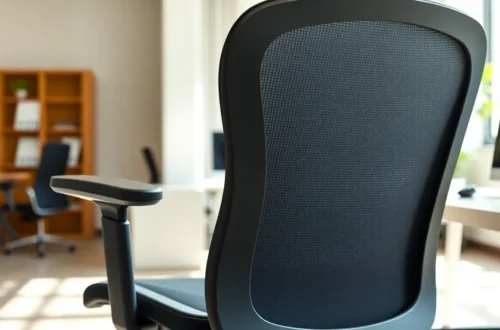
Your chair's backrest should support the natural curve of your lower back. Most office chairs have lumbar support that you can adjust up or down. Position it so it fills the gap between your lower back and the chair when you sit upright. If your chair lacks adequate lumbar support, a small cushion or rolled towel placed at the small of your back works well. Sit all the way back in your chair rather than perching on the front edge - this distributes your weight properly and engages the chair's support features.
Fun Facts & Trivia
- Sitting with your legs crossed can throw off your hip alignment and contribute to uneven pressure on your spine, even if it feels comfortable in the moment.
- The human head weighs around 10 to 12 pounds, but when you tilt it forward to look at a screen, the effective weight on your neck can increase dramatically due to leverage and gravity.
- Taking a break to stand or walk for just two minutes every half hour can help counteract the effects of prolonged sitting without significantly interrupting your work flow.
- Many people position their mouse too far to the side, forcing them to reach repeatedly throughout the day, which can strain the shoulder and contribute to repetitive stress injuries.
Positioning Your Keyboard and Mouse
Keyboard placement directly impacts your wrist and shoulder health. Keep your keyboard directly in front of you, centered with your body. It should be close enough that you don't have to reach forward, which would pull your shoulders out of alignment. The keyboard should sit flat or tilted slightly away from you - those flip-up feet on the back of most keyboards actually increase wrist extension and can contribute to carpal tunnel problems over time.
Your wrists should remain in a neutral position while typing, neither bent upward nor downward. Imagine a straight line running from your elbow through your wrist to your knuckles. Wrist rests can help maintain this position during breaks, but avoid resting your wrists on them while actively typing, as this can create pressure points. Instead, let your hands float above the keyboard, supported by your forearms.
Mouse position is equally important but often overlooked. Place your mouse right next to your keyboard at the same height, within easy reach. You shouldn't have to stretch or reach to use it. If you're right-handed, position it on the right side of your keyboard; left-handed users should do the opposite. Consider using keyboard shortcuts to reduce mouse usage, which can help prevent repetitive strain. For those who use the mouse extensively, an ergonomic mouse that supports your hand in a more natural position can reduce wrist strain.
Movement and Breaks Throughout Your Day
Even perfect posture becomes problematic when held too long. Your body wasn't designed to stay in one position for hours. The muscles and discs in your spine need movement to stay healthy and receive proper blood flow. Static postures, even good ones, eventually cause fatigue and discomfort.
Build regular movement into your work routine. Stand up and move around for a few minutes every 30 to 60 minutes. This doesn't mean taking a long break - even standing to stretch, walking to get water, or doing a quick lap around your space helps. These micro-breaks give your muscles a chance to relax and reset. Some people find it helpful to set a timer or use apps that remind them to move.
When you do take breaks, focus on movements that counteract sitting. Gentle neck rolls, shoulder shrugs, and standing back extensions can relieve tension. Stretch your hip flexors, which tighten from prolonged sitting, by taking a short walk or doing a standing lunge stretch. Look away from your screen periodically and focus on something distant to give your eye muscles a break from constant near-focus work.
Consider varying your posture throughout the day. A sit-stand desk lets you alternate between sitting and standing, though standing all day has its own issues. The key is variation. Even small position changes - adjusting how you sit, changing which leg you cross, or shifting your weight - keep your body from locking into one static posture.
Conclusion
Creating a healthy computer workstation doesn't require expensive equipment or dramatic changes. The fundamentals - monitor at eye level and an arm's length away, feet flat with knees at 90 degrees, keyboard and mouse at elbow height - form the foundation of good ergonomics. But setup is only part of the equation. How you use your workspace matters just as much. Regular movement breaks, attention to your posture throughout the day, and willingness to adjust when something feels off will protect your body far better than any chair or desk alone. Start with one or two changes that address your biggest discomfort, then build from there. Your neck, back, and shoulders will thank you, not just today but years down the road when you've avoided the chronic pain that plagues so many desk workers.
FAQs
How long should I sit before taking a break from my computer?
You should stand up and move for at least two minutes every 30 to 60 minutes of sitting. These short breaks don't need to be formal exercise sessions - simply standing, stretching, or walking around your space is enough to counteract the effects of static sitting. If you're deeply focused on work, aim for movement at least once per hour. The key is consistency rather than duration; frequent short breaks work better than occasional long ones for maintaining circulation and reducing muscle fatigue.
What should I do if my desk is too high and I can't adjust it?
If you're stuck with a desk that's too high, raise your chair to bring your arms to the proper height for your keyboard and mouse. This will likely leave your feet dangling, so use a footrest or a sturdy box under your feet to maintain the 90-degree knee angle. A footrest doesn't need to be fancy - a stack of books or a small storage box works fine as long as it's stable and the right height. This combination of a raised chair and footrest recreates the proper ergonomic relationships even when your desk height isn't ideal.
Is it better to use a laptop stand or get a separate monitor?
Both solutions work, but they serve slightly different needs. A laptop stand paired with an external keyboard and mouse is portable and works well if you move between locations or have limited desk space. A separate monitor typically offers a larger screen, which can reduce eye strain, and gives you more flexibility in positioning. If you work from the same desk every day and have the space, a dedicated monitor usually provides better ergonomics and viewing comfort. For hybrid workers who split time between locations, a laptop stand offers the best balance of portability and proper screen height.